
YouTube Thumbnail Size & Dimensions: The Complete 2026 Guide
The exact YouTube thumbnail size, dimensions, aspect ratio, file size limits, and safe zone rules for 2026. Includes a quick-reference specs table and mobile design tips.
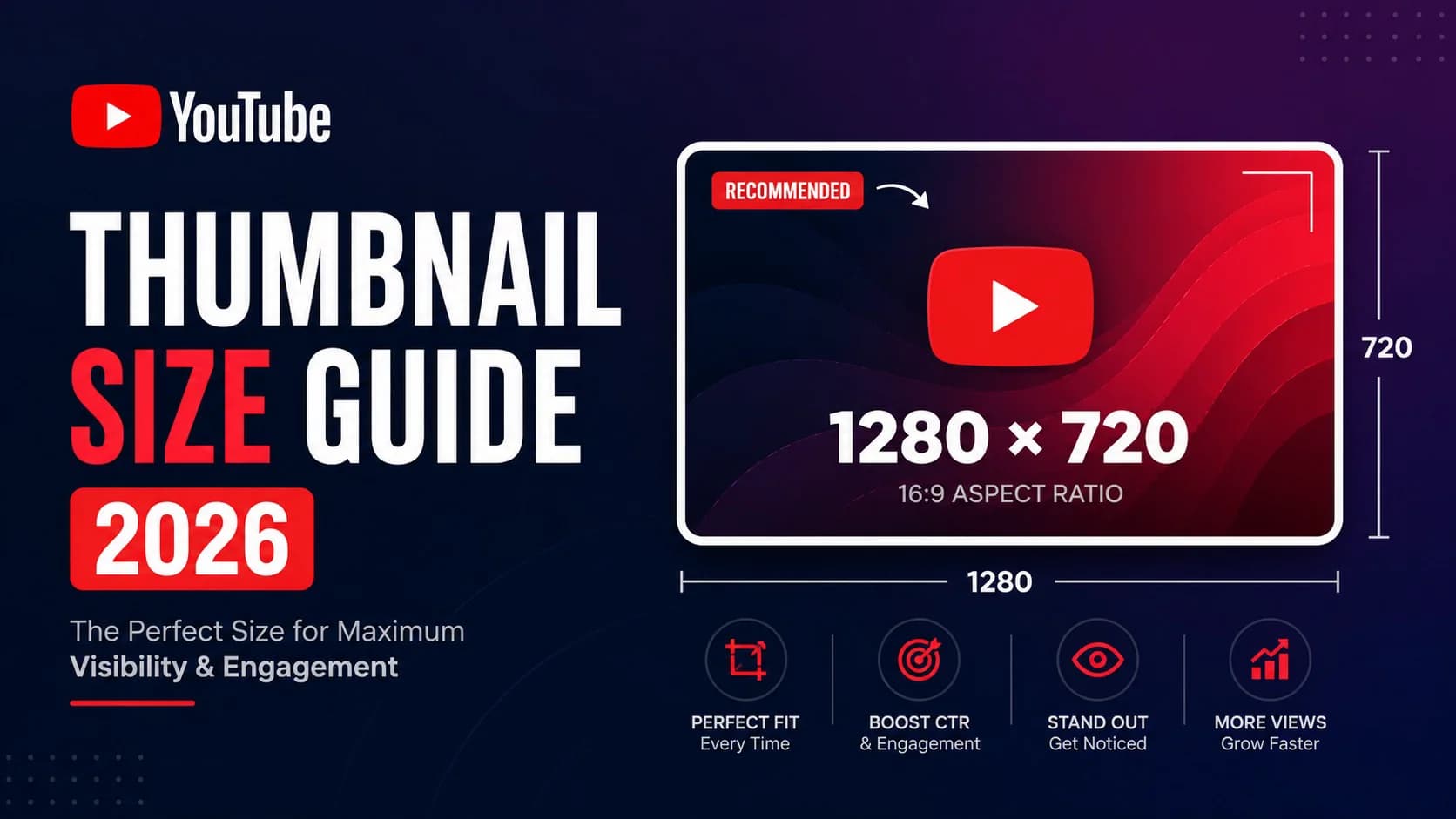
Your YouTube thumbnail is the single most important factor in whether someone clicks your video or scrolls past it. Get the size wrong — too small, wrong aspect ratio, critical text hidden behind the duration badge — and your click-through rate drops before the algorithm even has a chance to promote you.
This guide covers every official YouTube thumbnail specification for 2026, including the new 50 MB desktop upload limit, mobile safe zones, and format requirements. Bookmark this page as your quick reference.
Key Takeaways
- The recommended YouTube thumbnail size is 1280 × 720 pixels with a 16:9 aspect ratio and a minimum width of 640 pixels.
- YouTube now allows thumbnail uploads up to 50 MB on desktop, while mobile uploads remain capped at 2 MB.
- Accepted upload formats are JPG, PNG, and GIF only — YouTube does not accept WebP or AVIF uploads.
- Keep critical text and faces out of the bottom-right 15–20% of the frame to avoid the duration badge overlay.
- Over 70% of YouTube views happen on mobile, so always test your thumbnail at roughly 120 pixels wide.
What Is the Correct YouTube Thumbnail Size in 2026?
The recommended YouTube thumbnail size is 1280 × 720 pixels. This has been the standard since YouTube's early days and remains unchanged in 2026.
YouTube requires a 16:9 aspect ratio and a minimum width of 640 pixels. Any image narrower than 640 pixels will be rejected during upload.
Here is the complete specs table:
| Specification | Requirement |
|---|---|
| Recommended Resolution | 1280 × 720 pixels |
| 4K Resolution (Optional) | 3840 × 2160 pixels |
| Aspect Ratio | 16:9 |
| Minimum Width | 640 pixels |
| Max File Size (Desktop) | 50 MB |
| Max File Size (Mobile) | 2 MB |
| Accepted Formats | JPG, PNG, GIF |
| Not Accepted | WebP, AVIF |
Why 1280×720?
YouTube displays thumbnails at different sizes across devices — from 120×68 pixels on mobile search results to full-width on TV apps. 1280×720 gives YouTube enough source resolution to downscale cleanly across all surfaces without introducing compression artifacts.
If you want to see what resolution your favorite creator's thumbnails actually are, you can check using our YouTube Thumbnail Downloader — it shows all available quality levels for any video.
YouTube Thumbnail Aspect Ratio: Why 16:9 Matters
YouTube's entire player and layout system is built around the 16:9 aspect ratio. If you upload a thumbnail that does not match this ratio, YouTube will either:
- Add black bars (letterboxing) around your image
- Crop your image to force it into 16:9
Both outcomes make your thumbnail look unprofessional compared to videos with correctly sized thumbnails.
Common Mistakes with Aspect Ratio
- Square images (1:1): These get cropped or letterboxed, cutting off important elements.
- Vertical images (9:16): These are designed for Shorts, not standard videos.
- Arbitrary sizes: Using a random canvas size like 800×600 (4:3) will result in cropping.
Quick formula: If your width is W, your height should be W × 9 ÷ 16. For a 1280px wide image, that is exactly 720px tall.
File Size Limits: The 2026 Update (50 MB Desktop)
In 2026, YouTube increased the maximum thumbnail file size for desktop uploads from the longstanding 2 MB cap to 50 MB. This change was introduced to support high-resolution 4K thumbnails that look sharp on modern TV displays.
| Upload Method | Max File Size | Best For |
|---|---|---|
| Desktop (YouTube Studio) | 50 MB | High-quality PNG or 4K images |
| Mobile (YouTube App) | 2 MB | Compressed JPG thumbnails |
What This Means in Practice
- If you upload from a desktop browser, you can now use larger, higher-quality PNG files without heavy compression.
- If you upload from the YouTube mobile app, you still need to keep files under 2 MB. A compressed JPG at 1280×720 typically falls between 100 KB and 500 KB, well within the limit.
- Even with the 50 MB limit, there is no benefit to uploading excessively large files. YouTube re-encodes thumbnails internally for different devices, and extremely large files can occasionally cause processing delays.
Practical Tip
For most creators, a high-quality JPG at 1280×720 under 500 KB is the sweet spot. It uploads instantly, looks great on all devices, and stays well within both the desktop and mobile limits.
Accepted Image Formats: JPG, PNG, and GIF
YouTube accepts three image formats for custom thumbnail uploads:
- JPG (JPEG): The most common choice. Good compression with acceptable quality. Best for photographic thumbnails with gradients and faces.
- PNG: Lossless compression. Larger file size but sharper text and edges. Best for graphic-heavy designs with bold text overlays.
- GIF: Supported but rarely used. YouTube only accepts static GIFs (not animated). There is no practical reason to use GIF over JPG or PNG.
Formats YouTube Does NOT Accept
YouTube does not accept WebP or AVIF for thumbnail uploads. If you try to upload a .webp or .avif file, you will get an error.
However, YouTube does convert your uploaded thumbnail to WebP internally when serving it to viewers. This is an automatic server-side optimization — you do not need to worry about it. Just upload in JPG or PNG.
| Format | Upload Supported? | Best Use Case |
|---|---|---|
| JPG | ✅ Yes | Photographic thumbnails, faces, gradients |
| PNG | ✅ Yes | Text-heavy designs, sharp edges, transparent layers |
| GIF | ✅ Yes (static only) | Rarely practical — use JPG or PNG instead |
| WebP | ❌ No | Not accepted for upload |
| AVIF | ❌ No | Not accepted for upload |
For a deeper look at how YouTube stores thumbnails in multiple quality levels, check out our guide on downloading YouTube thumbnails in HD and 4K.
The Safe Zone: Avoiding the Duration Badge & UI Overlays
One of the most overlooked aspects of thumbnail design is the safe zone — the area of your thumbnail that YouTube's interface elements will cover.
YouTube automatically overlays several UI elements on top of your thumbnail:
- Bottom-right corner: The video duration badge (e.g., "12:34"). This can cover roughly 15% of the bottom-right area.
- Bottom-left corner: "Watch Later" and queue icons appear on hover.
- Top-right corner: Menu dots on some surfaces.
- Bottom edge: The progress bar on partially watched videos.
The 15–20% Rule
Keep all critical visual information — text, faces, logos, key numbers — out of the bottom 15–20% and the right 15% of the frame. This creates a safe zone that ensures nothing important gets hidden.
Where to Place Key Elements
| Element | Recommended Position |
|---|---|
| Main subject / face | Center or left two-thirds |
| Primary text | Upper half or left side |
| Logo / branding | Top-left corner |
| Avoid placing anything | Bottom-right corner |
Pro Tip: Test Before Publishing
Before uploading your thumbnail, shrink it down to approximately 120 pixels wide on your screen. This simulates how it will appear in mobile search results. If you cannot read the text or identify the subject at this size, your design needs simplification.
Designing for Mobile: The 120-Pixel Test
Over 70% of YouTube views happen on mobile devices. On a phone screen, your carefully crafted 1280×720 thumbnail gets displayed as a tiny tile — sometimes as small as 120 × 68 pixels.
This means your thumbnail needs to work at two scales: the full-size preview in YouTube Studio, and the tiny tile a viewer sees while scrolling their phone.
Mobile Design Best Practices
- Limit text to 3–5 words maximum. Research shows that thumbnails with 4 or fewer words can achieve up to 30% higher click-through rates compared to text-heavy designs.
- Use bold, sans-serif fonts. Thin or decorative fonts become unreadable smudges on mobile. Choose heavyweight fonts like Impact, Bebas Neue, or Montserrat Black.
- Add text outlines or drop shadows. A 4–8 pixel outline ensures your text separates from the background at any size.
- Focus on one clear subject. Limit your design to 2–3 visual elements total. Cluttered thumbnails are associated with lower engagement.
- Use high contrast. A text-to-background contrast ratio of at least 4.5:1 ensures readability on small screens.
The Readability Checklist
Before finalizing any thumbnail, run through this checklist:
- ✅ Can I read every word when the image is 120 pixels wide?
- ✅ Is the main subject immediately identifiable?
- ✅ Is there anything in the bottom-right corner that will be hidden by the duration badge?
- ✅ Does it look distinct from other videos on the same topic?
YouTube Shorts Thumbnails: Different Specs
YouTube Shorts use a different thumbnail specification than standard videos:
| Specification | Standard Video | YouTube Shorts |
|---|---|---|
| Resolution | 1280 × 720 | 1080 × 1920 |
| Aspect Ratio | 16:9 (landscape) | 9:16 (portrait) |
| Safe Zone | Avoid bottom-right | Avoid bottom 15–20% |
For Shorts, keep faces and important text out of the bottom 15–20% of the frame, as this area gets covered by the title overlay and interaction buttons.
If you need to grab a thumbnail from a YouTube Short, you can use our YouTube Thumbnail Downloader — it supports Shorts URLs alongside standard video links.
How Thumbnails Affect Your Click-Through Rate (CTR)
Your thumbnail is the primary driver of click-through rate on YouTube. While there is no single "good" CTR number (it varies by niche and traffic source), understanding the benchmarks helps you set realistic goals — read our full guide on What is a Good YouTube CTR? (2026 Benchmarks) for complete data.
CTR by Traffic Source
Not all impressions are equal. Where YouTube shows your thumbnail dramatically affects how often it gets clicked:
| Traffic Source | Typical CTR Range | Why |
|---|---|---|
| YouTube Search | 12–15%+ | Viewers have high intent — they searched for something specific |
| Suggested Videos | 4–8% | Viewers are browsing related content |
| Browse / Home Feed | 3–7% | Viewers are in discovery mode, competing against many videos |
| External Sources | Varies | Depends on context (social media, embeds, etc.) |
CTR by Content Niche
| Niche | Average CTR |
|---|---|
| Gaming | ~8.5% |
| Health & Fitness | ~8.0% |
| Tech & Reviews | ~7.5% |
| Beauty & Fashion | ~6.5% |
| Entertainment & Vlogs | ~6.0% |
| Finance & Business | ~5.5% |
| Education & Tutorials | ~4.5% |
A well-designed thumbnail at the correct dimensions and quality level gives your video the best possible chance of earning clicks. If you want to study what high-performing thumbnails in your niche look like, try downloading a few using our Playlist Thumbnail Downloader to analyze patterns across an entire channel.
Quick Reference: YouTube Thumbnail Specs at a Glance
Here is everything in one place for quick copy-paste reference:
| Spec | Value |
|---|---|
| Resolution | 1280 × 720 px |
| 4K Option | 3840 × 2160 px |
| Aspect Ratio | 16:9 |
| Min Width | 640 px |
| File Size (Desktop) | ≤ 50 MB |
| File Size (Mobile) | ≤ 2 MB |
| Formats | JPG, PNG, GIF |
| NOT Accepted | WebP, AVIF |
| Safe Zone | Avoid bottom-right 15% |
| Shorts Resolution | 1080 × 1920 px |
| Shorts Ratio | 9:16 |
FAQs
What is the best YouTube thumbnail size?
The best YouTube thumbnail size is 1280 × 720 pixels with a 16:9 aspect ratio. This is YouTube's official recommendation and ensures your thumbnail looks sharp on all devices, from mobile phones to TVs.
Can I upload a 4K thumbnail to YouTube?
Yes, you can upload thumbnails at 3840 × 2160 pixels (4K) if you are using desktop upload. The higher resolution helps on large TV displays. However, for most creators, 1280×720 is sufficient since YouTube downscales thumbnails for the majority of viewing surfaces.
Why is my YouTube thumbnail blurry?
Blurry thumbnails are usually caused by uploading an image below the minimum width of 640 pixels, using heavy JPG compression, or using the wrong aspect ratio (which forces YouTube to stretch or crop the image). Always upload at 1280×720 with minimal compression for the clearest result.
What happens if my thumbnail is not 16:9?
If your thumbnail does not match the 16:9 aspect ratio, YouTube will either add black bars (letterboxing) around your image or crop it to fit. Both make your thumbnail look unprofessional and can hide important design elements.
Does YouTube accept WebP thumbnails?
No. YouTube only accepts JPG, PNG, and static GIF for thumbnail uploads. WebP and AVIF are not supported for upload. However, YouTube may convert your uploaded image to WebP internally when serving it to viewers — this happens automatically and requires no action from you.
How do I check what size a YouTube thumbnail is?
You can use our free YouTube Thumbnail Downloader to see all available thumbnail resolutions for any YouTube video. Just paste the video URL and it shows you every quality level from Full HD (1280×720) down to small (120×90).
What is the YouTube thumbnail safe zone?
The safe zone is the area of your thumbnail that is not covered by YouTube's UI overlays. The video duration badge covers the bottom-right corner, and other icons appear at the edges. Keep important text and faces in the center and left two-thirds of the frame, and avoid the bottom 15–20% of the image.
Is the 50 MB file size limit available for everyone?
The 50 MB limit applies to desktop uploads through YouTube Studio. Mobile uploads through the YouTube app remain limited to 2 MB. If you encounter issues with the larger limit, try uploading a compressed JPG under 2 MB as a fallback — this works universally across all devices and accounts.